Computer Fundamentals
Inside a Computer System
Inside a Computer System
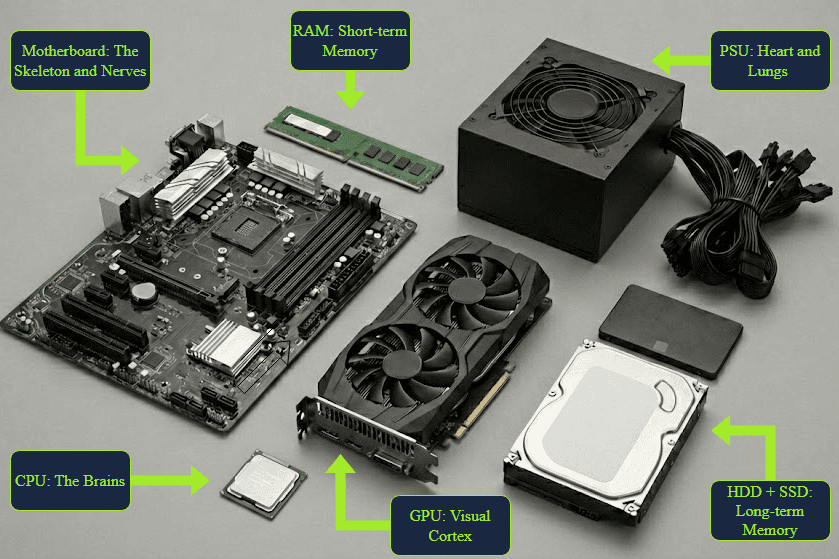
Components
- What role does the motherboard play in a computer?
It connects and allows communication between all components
- What do you think the CPU does?
Executes instructions and performs calculations
- How would you describe what RAM does?
Stores data temporarily while the computer is running
- What's the main purpose of storage devices like SSDs and HDDs?
To save data permanently even when powered off
- What does a network adapter enable a computer to do?
Communicate with other computers and networks
- What is the main function of the Power Supply Unit?
To supply electrical power to all components
- What does a graphics card primarily handle?
Processing and outputting visual information to displays
- What are input and output devices used for?
To send data to and receive data from the computer
Motherboard Inspection
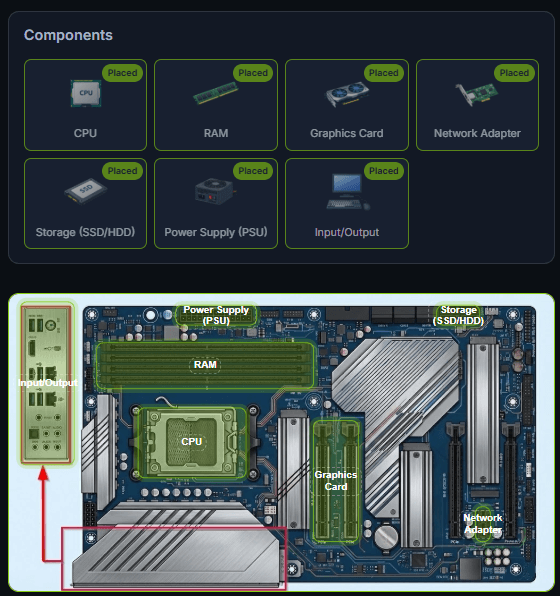
- Give in the flag you received after completing the exercise on the static site.
THM{4llpccomp0n3nts1d3nt1f13d}
What Happens When you Press the Start Button?
- Power Button → PSU mulai menyalurkan daya.
- Firmware (UEFI/BIOS) → menginisialisasi komponen hardware.
- POST (Power-On Self Test) → mengecek apakah komponen penting ada dan berfungsi.
- Select Boot Device → UEFI memilih perangkat tempat OS berada sesuai boot order.
- Bootloader → memuat Operating System dari storage ke RAM, lalu kontrol sistem diserahkan ke OS.
- What happens first when you press the power button?
The PSU starts delivering power to components
- What is UEFI's role in the boot process?
It initializes and coordinates hardware components
- What does POST check for?
Whether required hardware is present and working
- How does UEFI know which device to boot from?
It follows a configured boot priority list
- What does the bootloader do?
Loads the operating system into RAM
- Press Power Button: You press the power button, sending a signal to the PSU to let power through. The system begins powering up.
- Firmware Starts (UEFI/BIOS): UEFI (or older BIOS) firmware initializes and coordinates components. It's the first software that runs.
- Power-On Self Test (POST): UEFI runs POST to check that required hardware is present, configured, and functioning. Errors trigger beeps or alerts.
- Select Boot Device: UEFI follows a priority list to determine which device to boot from - typically an SSD or HDD with the OS installed.
- Initiate Bootloader: The bootloader loads the operating system into RAM. Then UEFI hands control to the OS, completing the boot sequence.
- What is the flag that you received after completing the exercise?
THM{pc5ucce55fully5t4rt3d}
Computer Types
Sophia's Summer of Hidden Computers - Month 1
-
Laptop → portabel, cocok untuk aktivitas sehari-hari seperti email dan dokumen.
-
Desktop → dipakai di lokasi tetap, punya pendinginan dan performa berkelanjutan yang lebih baik.
-
Workstation → untuk pekerjaan profesional berat seperti simulasi dan 3D, mengutamakan akurasi dan reliability.
-
Server → biasanya tidak punya screen/keyboard untuk penggunaan langsung; menyediakan layanan ke banyak pengguna melalui network dan dapat berjalan terus-menerus.
-
Which computer type usually runs without a dedicated screen and keyboard?
server
- What kind of computer with specialized components would one buy to carry out precision work?
workstation
Sophia’s Summer of Hidden Computers – Month 2
-
Smartphone → komputer kecil di saku, fokus pada baterai dan konektivitas.
-
Tablet → komputer layar sentuh dengan ukuran lebih besar.
-
IoT device → perangkat khusus yang terhubung ke jaringan, misalnya smart doorbell atau fitness tracker.
-
Embedded computer → komputer yang tertanam di dalam perangkat lain untuk menjalankan fungsi tertentu.
-
What is the currently most popular pocket-sized computer?
smartphone
- What kind of computer would you expect to find in a coffee machine?
embedded computer
Why Computers Come in Different Flavors
1
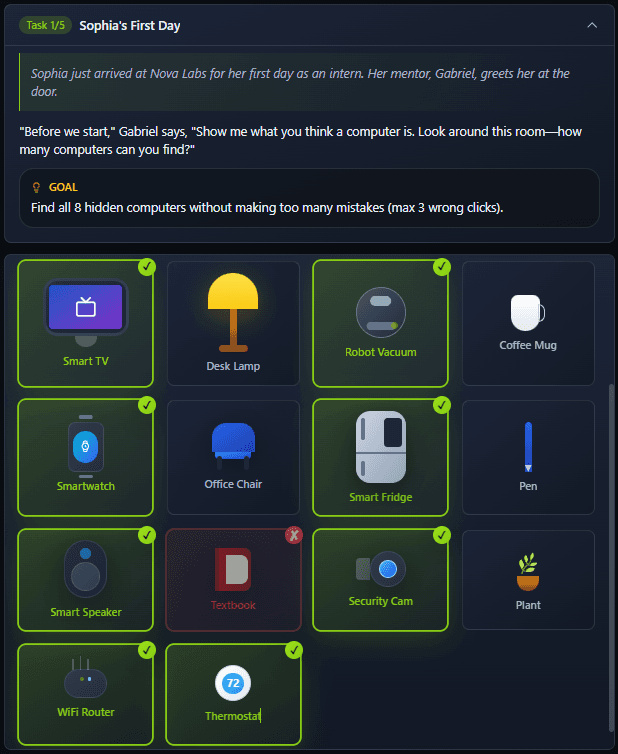
2
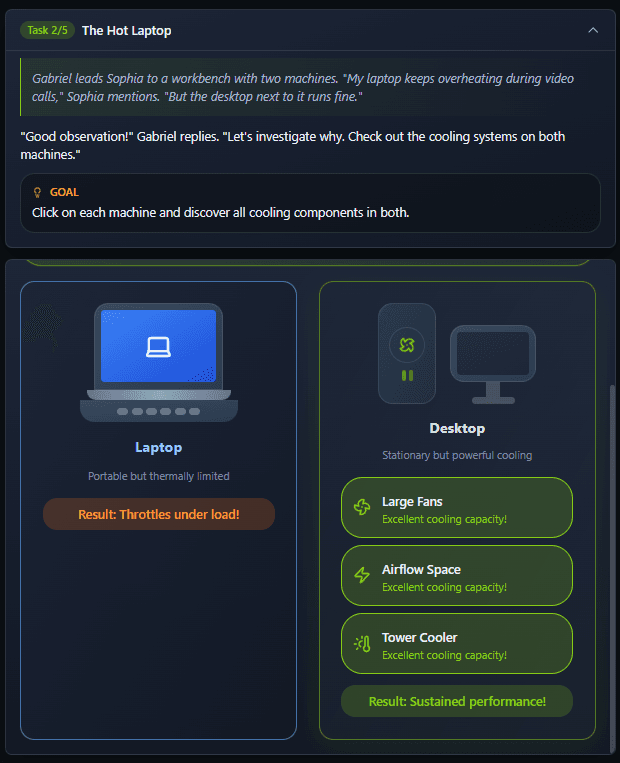
3
4
5
- Why do laptops throttle more than desktops?
Less cooling space
- What does server redundancy prevent?
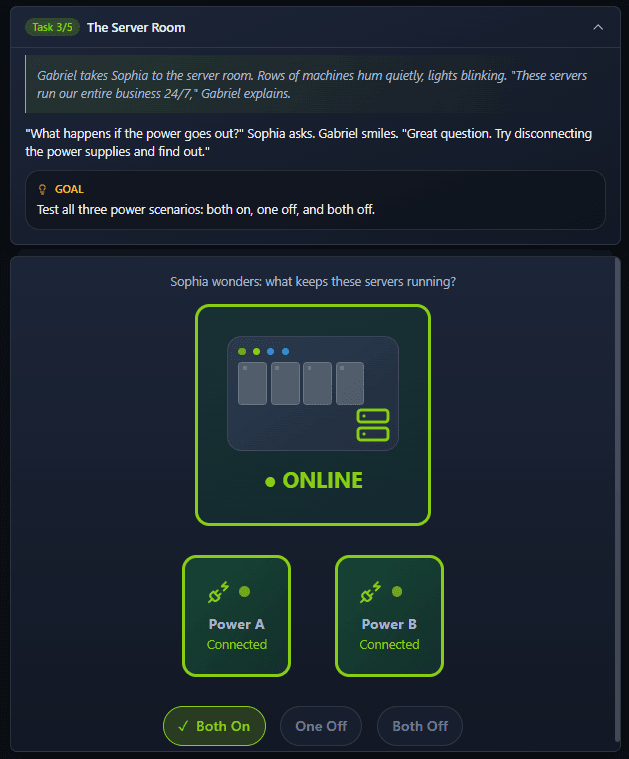
single points of failure
- Why do smartphones last longer on battery than laptops?
Optimized for efeciency
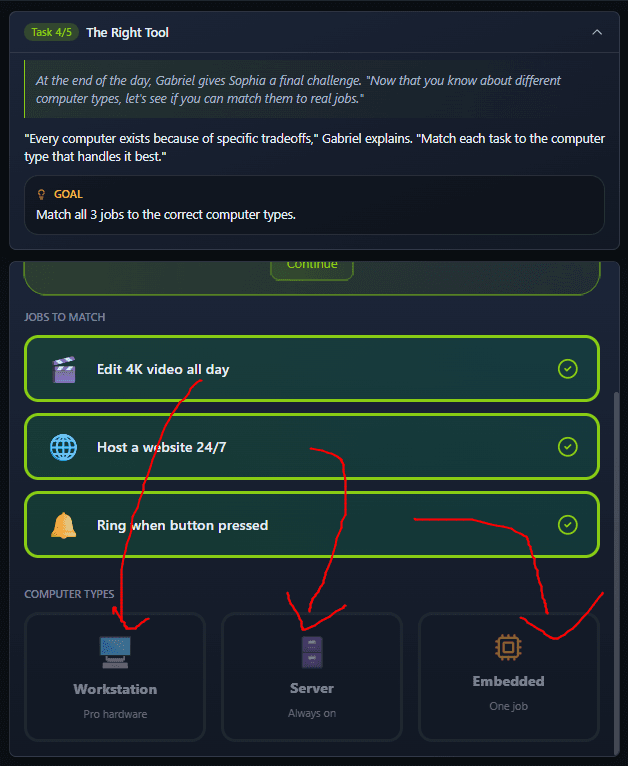
- Which feature is more common in workstations?
ECC RAM & Certified drivers
- In many smart homes, what coordinates devices?
Hub or cloud service
ANSWER
- Go through the attached static site and get the flag.
THM{8_computer_types}
Client-Server Basics
Pizza Delivery
-
Client → pihak yang memulai permintaan, misalnya browser.
-
Server → sistem yang menerima permintaan dan memberikan layanan/data.
-
Request → permintaan dari client ke server.
-
Response → jawaban dari server ke client.
-
Protocol → aturan komunikasi antara client dan server, termasuk format, syntax, command, dan jenis response.
-
Port → “pintu” untuk mengakses layanan tertentu pada server. Satu server bisa punya banyak layanan dengan port berbeda.
-
DNS → menerjemahkan nama domain seperti example.com menjadi IP address.
-
IP address → alamat suatu sistem di jaringan.
-
What do we use to identify a specific service on a server?
Port
- What do we call the address of a server?
internet Protocol Address
Web Communication in Practice
- HTTP/HTTPS adalah protokol client-server untuk komunikasi di web.
- HTTP bersifat stateless, artinya tiap request diproses secara terpisah.
- Agar login tetap “diingat”, website biasanya memakai session, cookie, atau token.
Ada 9 method utama HTTP:
GET, POST, PUT, DELETE, PATCH, HEAD, OPTIONS, CONNECT, TRACE.
Yang dibahas di sini adalah GET:
- Dipakai untuk mengambil resource/data dari web server.
- Contoh:
GET https://tryhackme.com/index.php
Field penting saat melihat request:
- Scheme → HTTP atau HTTPS.
- Host → server/domain tujuan.
- Filename → file/resource yang diminta.
- Address → IP address server.
- Status → hasil request, misalnya 200 OK = berhasil.
Response dari server terdiri dari:
- Response Header → metadata tentang response.
- Response Body → isi/resource yang diminta, misalnya HTML halaman web.
Yang paling penting diingat: GET = mengambil data, dan 200 OK = request berhasil.
- What would be the host in the following URL? https://www.iamlearning.thm/contact
- What would be the scheme in the following URL? https://www.iamlearning.thm/contact
https
Virtualisation Basics
Virtualisation Overview
Intinya:
- Dulu umum dipakai konsep “1 server = 1 aplikasi”.
- Masalahnya: mahal, banyak resource terbuang, deployment lambat, dan sulit scale.
- Virtualization memungkinkan satu server fisik menjalankan beberapa komputer virtual sekaligus.
- Hypervisor adalah software yang membagi dan mengatur resource hardware untuk tiap VM.
- Setiap VM (Virtual Machine) punya OS, aplikasi, dan konfigurasi sendiri, seolah-olah komputer terpisah.
Analogi gedung:
- Gedung = physical server
- Apartemen = VM
- Penghuni = aplikasi/OS
- Pengelola gedung = hypervisor
Yang paling penting diingat: virtualization membuat satu hardware fisik bisa dipakai banyak sistem secara terpisah, aman, dan lebih efisien.
- What does virtualization enable multiple applications to share?
physical server
- What is the name of the software that manages the resources for each lab machine?
Hypervisor
Virtualization Components
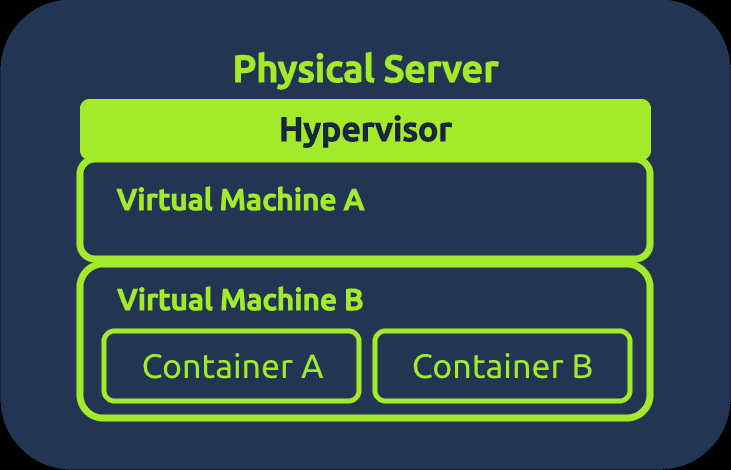
- Hypervisor = software yang membuat dan mengelola VM.
- Tugasnya membagi CPU, RAM, storage, menjaga isolasi, dan mengatur lifecycle VM seperti start, stop, pause, clone, dan delete.
Perbedaan hypervisor:
- Type 1 → langsung berjalan di hardware fisik. Cocok untuk server produksi, database, data center.
- Type 2 → berjalan di atas OS utama. Cocok untuk belajar, testing, Kali Linux, dan lab malware.
VM (Virtual Machine):
- Punya virtual CPU, RAM, storage, network, dan OS sendiri.
- Lebih terisolasi.
- Contoh software Type 2: VirtualBox dan VMware Workstation.
Container:
- Lebih ringan daripada VM.
- Biasanya menjalankan satu aplikasi beserta dependencies-nya.
- Berbagi kernel dengan host, jadi tidak membawa OS lengkap sendiri.
- Start lebih cepat dan memakai resource lebih sedikit.
- Contoh platform: Docker.
Perbedaan paling penting: VM = punya OS sendiri, sedangkan container = berbagi kernel host.
Analogi:
- Physical server = gedung
- VM = apartemen
- Container = kamar di dalam apartemen
- Hypervisor = pengelola gedung
- Suppose a user wants to deploy a study lab on their machine to practice some exercises for a cyber security certification. Which type of hypervisor will they use?
type 2
- Suppose a company wants to host multiple small applications in the same lab machine. What should they use?
containers
Managing Virtual Machines
- What is the name of the lab machine that has been running for the longest time?
Monitoring-SYS
- What is the name of the lab machine that is using the biggest amount of memory?
DB-Cluster-01
- How many VMs are in the running state after you solved the issue on
Mail-SERVER?
8
- What is the name of the physical machine that is hosting most of the VMs?
HV-PROD-02
Cloud Computing Fundamentals
Cloud Computing Overview
- Cloud computing = menggunakan server, storage, dan resource komputasi melalui internet, bukan hanya dari satu komputer lokal.
- Keunggulan utama:
- Scalable → resource bisa dinaikkan atau diturunkan sesuai kebutuhan.
- On-demand → server/storage bisa dibuat kapan saja.
- Pay-as-you-go → bayar sesuai pemakaian.
- High availability → layanan tetap tersedia meski sebagian sistem gagal.
- Global access → bisa diakses dari mana saja.
- Security → infrastruktur diamankan oleh cloud provider.
Tipe deployment:
- Public Cloud → murah, mudah scale, cocok untuk kebanyakan aplikasi.
- Private Cloud → kontrol dan compliance lebih tinggi, cocok untuk data sensitif.
- Hybrid Cloud → gabungan private dan public cloud.
Model layanan:
- IaaS → provider mengurus hardware, kamu mengurus OS dan aplikasi.
- PaaS → provider juga mengurus OS, kamu fokus ke aplikasi.
- SaaS → semuanya dikelola provider, kamu tinggal memakai aplikasinya.
Contoh:
- IaaS → virtual server/cloud VM.
- PaaS → platform untuk deploy aplikasi.
- SaaS → Gmail, Zoom.
Cloud provider yang disebut: AWS, Microsoft Azure, GCP, Alibaba Cloud, IBM Cloud, Oracle Cloud.
Yang paling penting diingat: IaaS = paling banyak kontrol, PaaS = fokus ke aplikasi, SaaS = tinggal pakai.
- What is the characteristic of cloud environments that enables you to handle an unexpected increase in access to your application?
Scalability
- What is the most common type of cloud deployment used?
Public Cloud
- Suppose you want to deploy an application to the internet, focusing only on application development and leaving infrastructure to others. What type of cloud service is the best?
PaaS
Deploying a Cloud Instance
- What is the total cost of credits of the entire environment if study-machine-1 and study-machine-2 are stopped?
30
- How many credits does an m5.large EC2 instance cost per month?
70
- What is the total cost of credits if only the new instances we created are running?
150
- What would be the total running cost of the entire environment you created if you add a third t3a.small study machine?
188
Conclusion
- Public Cloud → cloud bersama yang diakses lewat internet.
- Private Cloud → cloud khusus satu organisasi, kontrol lebih besar.
- Hybrid Cloud → gabungan public dan private cloud.
- IaaS → sewa server, storage, dan networking.
- PaaS → lingkungan siap pakai untuk membangun dan menjalankan aplikasi.
- SaaS → aplikasi siap pakai melalui internet, seperti Gmail atau Zoom.
- EC2 → layanan virtual computer dari AWS yang bisa dibuat dan diubah kapasitasnya sesuai kebutuhan.