Command Line
Windows Command Line
GUI mudah digunakan karena intuitif, tetapi CLI (Command-Line Interface) menjadi lebih cepat dan efisien setelah dikuasai. CLI memungkinkan pengguna menjalankan perintah tanpa mouse, mengulang tugas dengan cepat, dan bekerja lebih produktif.
-
Username: user
-
Password: Tryhackme123!
-
What is the default command line interpreter in the Windows environment?
cmd.exe
ssh user@10.80.180.243
# pass: Tryhackme123!
Basic System Information
Perintah di Windows CMD hanya bisa dijalankan dari direktori yang ada di Windows Path.
setuntuk melihat environment variables, termasuk Path tempat Windows mencari dan mengeksekusi perintah.verdigunakan untuk mengetahui versi sistem operasi Windows.systeminfomenampilkan informasi sistem secara lengkap, seperti:- Nama host, Versi dan tipe OS, Detail sistem, Prosesor dan memori
driverquerymenampilkan daftar driver yang terinstal di sistem.- Jika output perintah terlalu panjang, gunakan pipe ke more (contoh: driverquery | more) agar hasil ditampilkan per halaman.
- Tekan
Spaceuntuk lanjut - Tekan
CTRL + Cuntuk keluar
- Tekan
- Perintah dasar tambahan:
help→ menampilkan bantuan untuk perintah tertentucls→ membersihkan layar Command Prompt
- Perintah Tambahan:
echo→ menampilkan pesan di layartype→ menampilkan isi file teksmore→ menampilkan output per halaman- Contoh:
type filename.txt | more,driverquery | more
- Contoh:
set
# ALLUSERSPROFILE=C:\ProgramData
# APPDATA=C:\Users\user\AppData\Roaming
# ChocolateyInstall=C:\ProgramData\chocolatey
# CommonProgramFiles=C:\Program Files\Common Files
# CommonProgramFiles(x86)=C:\Program Files (x86)\Common Files
# CommonProgramW6432=C:\Program Files\Common Files
# COMPUTERNAME=WINSRV2022-CORE
# ComSpec=C:\Windows\system32\cmd.exe
# DriverData=C:\Windows\System32\Drivers\DriverData
# EC2LAUNCH_TELEMETRY=1
# HOME=C:\Users\user
# HOMEDRIVE=C:
# ....

ver
# Microsoft Windows [Version 10.0.20348.2655]

systeminfo
# Host Name:                 WINSRV2022-CORE
# OS Name:                   Microsoft Windows Server 2022 Datacenter
# OS Version:                10.0.20348 N/A Build 20348
# OS Manufacturer:           Microsoft Corporation
# OS Configuration:          Standalone Server
# OS Build Type:             Multiprocessor Free
# Registered Owner:          Windows User

driverquery | more
# Module Name  Display Name           Driver Type   Link Date
# ============ ====================== ============= ======================
# 1394ohci     1394 OHCI Compliant Ho Kernel
# 3ware        3ware                  Kernel        5/18/2015 11:28:03 PM
# ACPI         Microsoft ACPI Driver  Kernel
# AcpiDev      ACPI Devices driver    Kernel
# acpiex       Microsoft ACPIEx Drive Kernel
# acpipagr     ACPI Processor Aggrega Kernel
# AcpiPmi      ACPI Power Meter Drive Kernel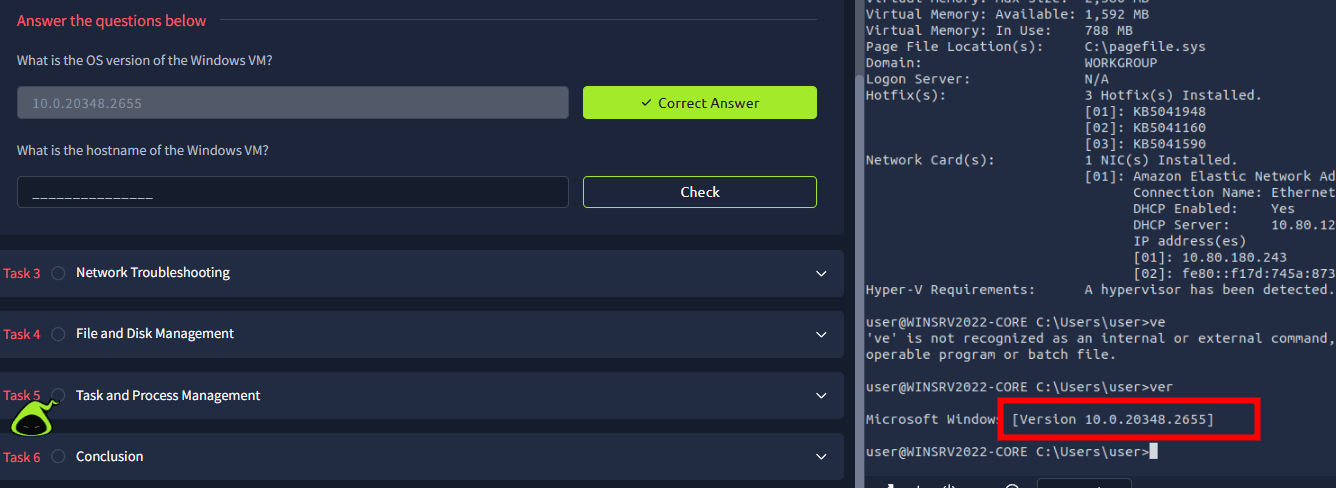
- What is the OS version of the Windows VM?
10.0.20348.2655
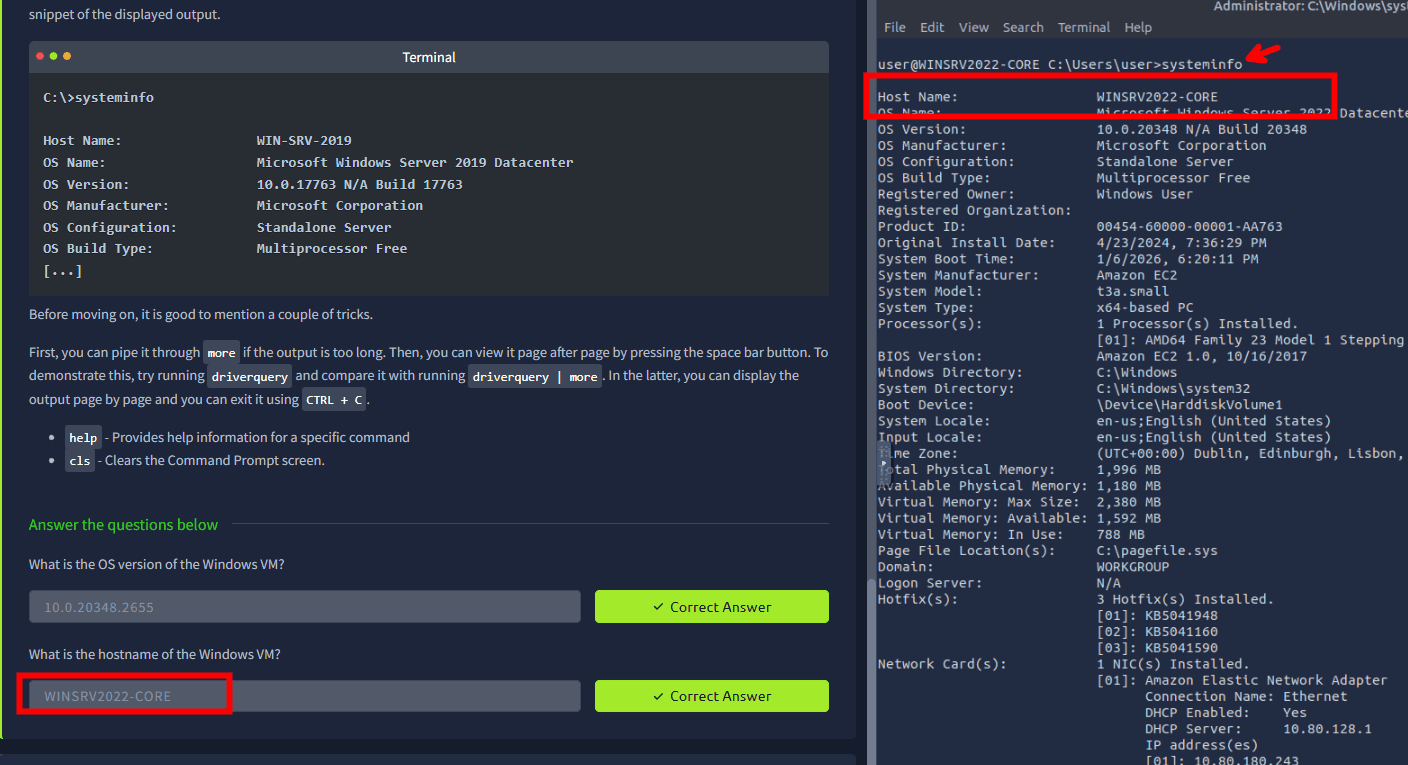
- What is the hostname of the Windows VM?
WINSRV2022-CORE
Network Troubleshooting
-
ipconfiguntuk menampilkan konfigurasi IP pada Windows. -
ipconfig /allmenampilkan informasi lengkap, termasuk MAC address, DNS, DHCP, dll. -
ping [alamat IP atau domain]untuk menguji konektivitas jaringan. -
tracert [alamat IP atau domain]untuk melacak rute paket ke tujuan. -
nslookup [domain]untuk mencari informasi DNS dari domain. -
netstatmenampilkan koneksi jaringan aktif dan port yang sedang digunakan. -a displays all established connections and listening ports -b shows the program associated with each listening port and established connection -o reveals the process ID (PID) associated with the connection -n uses a numerical form for addresses and port numbersbisa di combine contoh:
netstat -abon,netstat -ano -
Which command can we use to look up the server’s physical address (MAC address)?
ipconfig /all
netstat -abon
outputnya:
Active Connections

  Proto  Local Address          Foreign Address        State           PID
  TCP    0.0.0.0:22             0.0.0.0:0              LISTENING       1624
 [sshd.exe]
  TCP    0.0.0.0:135            0.0.0.0:0              LISTENING       900
  RpcEptMapper
 [svchost.exe]
  TCP    0.0.0.0:445            0.0.0.0:0              LISTENING       4
 Can not obtain ownership information
  TCP    0.0.0.0:3389           0.0.0.0:0              LISTENING       988
  TermService
 [svchost.exe]
  TCP    0.0.0.0:5985           0.0.0.0:0              LISTENING       4
 Can not obtain ownership information
  TCP    0.0.0.0:47001          0.0.0.0:0              LISTENING       4
 Can not obtain ownership information
  TCP    0.0.0.0:49664          0.0.0.0:0              LISTENING       676
 [lsass.exe]
  TCP    0.0.0.0:49665          0.0.0.0:0              LISTENING       536
 Can not obtain ownership information
  TCP    0.0.0.0:49666          0.0.0.0:0              LISTENING       388
  EventLog
 [svchost.exe]
  TCP    0.0.0.0:49667          0.0.0.0:0              LISTENING       512
  Schedule
 [svchost.exe]
  TCP    0.0.0.0:49668          0.0.0.0:0              LISTENING       656
 Can not obtain ownership information
  TCP    10.80.180.243:22       10.80.109.9:52912      ESTABLISHED     1624
 [sshd.exe]
  TCP    10.80.180.243:139      0.0.0.0:0              LISTENING       4
 Can not obtain ownership information
  TCP    [::]:22                [::]:0                 LISTENING       1624
 [sshd.exe]
  TCP    [::]:135               [::]:0                 LISTENING       900
  RpcEptMapper
 [svchost.exe]
  TCP    [::]:445               [::]:0                 LISTENING       4
 Can not obtain ownership information
  TCP    [::]:3389              [::]:0                 LISTENING       988
  TermService
 [svchost.exe]
  TCP    [::]:5985              [::]:0                 LISTENING       4
 Can not obtain ownership information
  TCP    [::]:47001             [::]:0                 LISTENING       4
 Can not obtain ownership information
  TCP    [::]:49664             [::]:0                 LISTENING       676
 [lsass.exe]
  TCP    [::]:49665             [::]:0                 LISTENING       536
 Can not obtain ownership information
  TCP    [::]:49666             [::]:0                 LISTENING       388
  EventLog
 [svchost.exe]
  TCP    [::]:49667             [::]:0                 LISTENING       512
  Schedule
 [svchost.exe]
  TCP    [::]:49668             [::]:0                 LISTENING       656
 Can not obtain ownership information
  UDP    0.0.0.0:123            *:*                                    1612
  W32Time
 [svchost.exe]
  UDP    0.0.0.0:500            *:*                                    512
  IKEEXT
 [svchost.exe]
  UDP    0.0.0.0:3389           *:*                                    988
  TermService
 [svchost.exe]
  UDP    0.0.0.0:4500           *:*                                    512
  IKEEXT
 [svchost.exe]
  UDP    0.0.0.0:5353           *:*                                    72
  Dnscache
 [svchost.exe]
  UDP    0.0.0.0:5355           *:*                                    72
  Dnscache
 [svchost.exe]
  UDP    0.0.0.0:51154          *:*                                    72
  Dnscache
 [svchost.exe]
  UDP    0.0.0.0:51869          *:*                                    72
  Dnscache
 [svchost.exe]
  UDP    10.80.180.243:137      *:*                                    4
 Can not obtain ownership information
  UDP    10.80.180.243:138      *:*                                    4
 Can not obtain ownership information
  UDP    127.0.0.1:62814        127.0.0.1:62814                        512
  iphlpsvc
 [svchost.exe]
  UDP    [::]:123               *:*                                    1612
  W32Time
 [svchost.exe]
  UDP    [::]:500               *:*                                    512
  IKEEXT
 [svchost.exe]
  UDP    [::]:3389              *:*                                    988
  TermService
 [svchost.exe]
  UDP    [::]:4500              *:*                                    512
  IKEEXT
 [svchost.exe]
  UDP    [::]:5353              *:*                                    72
  Dnscache
 [svchost.exe]
  UDP    [::]:5355              *:*                                    72
  Dnscache
 [svchost.exe]
  UDP    [::]:51154             *:*                                    72
  Dnscache
 [svchost.exe]
  UDP    [::]:51869             *:*                                    72
  Dnscache
 [svchost.exe]
tasklist /svc /fi "PID eq 900"
# Image Name PID Services
# ========================= ======== ============================================
# svchost.exe 900 RpcEptMapper, RpcSsyang RRpcSs adalah nama servicenya, sedangkan RpcEptMapper adalah display namenya.
- What is the name of the service listening on port 135?
RpcSs
- What is the name of the service listening on port 3389?
TermService
File and Disk Management
Working With Directories (Folder)
cd→ Change Directorycd [nama_folder]→ masuk ke folder
dir→ menampilkan isi direktoridir /p→ menampilkan isi direktori per halamandir /w→ menampilkan isi direktori dalam format lebardir /a→ menampilkan semua file, termasuk hidden dan system filesdir /s→ menampilkan isi direktori beserta subdirektorinya
tree→ menampilkan struktur direktori dalam bentuk pohontree /f→ menampilkan struktur direktori beserta file di dalamnya
mkdir [nama_folder]→ membuat folder barurmdir [nama_folder]→ menghapus folder kosongrmdir /s [nama_folder]→ menghapus folder beserta isinya
ren [nama_file_lama] [nama_file_baru]→ mengganti nama file atau foldercopy [sumber] [tujuan]→ menyalin file dari sumber ke tujuanmove [sumber] [tujuan]→ memindahkan file dari sumber ke tujuandel [nama_file]→ menghapus filedel /f [nama_file]→ menghapus file read-onlydel /s [nama_file]→ menghapus file dari semua subdirektori
attrib→ mengubah atribut file
cd C:\Treasure\Hunt

type flag.txt
# THM{CLI_POWER}
Task and Process Management
Tasklist
tasklistuntuk menampilkan daftar proses yang sedang berjalan di sistem Windows.tasklist /svcmenampilkan proses beserta layanan (services) yang terkait.tasklist /fi "PID eq [nomor_PID]"memfilter proses berdasarkan PID tertentu.
Taskkill
taskkill /PID [nomor_PID] /Funtuk menghentikan proses berdasarkan PID.taskkill /IM [nama_proses.exe] /Funtuk menghentikan proses berdasarkan nama proses.
Get Process Command Line
wmic process where "name='[nama_proses.exe]'" get ProcessId,CommandLineuntuk mendapatkan informasi command line dari proses tertentu.
tasklist
# Image Name                     PID Session Name        Session#    Mem Usage
# ========================= ======== ================ =========== ============
# System Idle Process              0 Services                   0          8 K
# System                           4 Services                   0        140 K
# Registry                        96 Services                   0     13,256 K
# ...

tasklist /FI "imagename eq notepad.exe"- What command would you use to find the running processes related to notepad.exe?
tasklist /FI "imagename eq notepad.exe"
- What command can you use to kill the process with PID 1516?
taskkill /PID 1516
chkdsk → memeriksa dan memperbaiki kesalahan pada hard drive.
driverquery → menampilkan daftar driver yang terinstal di sistem.
sfc /scannow → memeriksa dan memperbaiki file sistem Windows yang rusak atau hilang.
diskpart → utilitas manajemen disk untuk mengelola partisi hard drive.
format [drive_letter]: /FS:[file_system] → memformat drive dengan sistem file tertentu (contoh: NTFS, FAT32).
defrag [drive_letter]: /U /V → mendefragmentasi hard drive untuk meningkatkan kinerja.
- The command shutdown /s can shut down a system. What is the command you can use to restart a system?
shutdown /r
- What command can you use to abort a scheduled system shutdown?
shutdown /a
Windows PowerShell
What Is PowerShell
PowerShell adalah alat otomasi tugas dan manajemen konfigurasi dari Microsoft yang bersifat lintas platform, terdiri dari command-line shell, bahasa skrip, dan kerangka kerja manajemen konfigurasi. PowerShell menggabungkan antarmuka baris perintah dengan bahasa skrip berbasis .NET, serta menggunakan pendekatan berorientasi objek yang memungkinkan pengolahan data kompleks dan interaksi sistem yang lebih efektif. Awalnya hanya tersedia di Windows, PowerShell kini mendukung macOS dan Linux, sehingga menjadi solusi serbaguna bagi profesional TI di berbagai sistem operasi.
PowerShell dikembangkan untuk mengatasi keterbatasan alat command-line tradisional Windows seperti cmd.exe dan batch file yang kurang efektif dalam lingkungan enterprise yang kompleks. Jeffrey Snover merancang PowerShell dengan pendekatan berorientasi objek untuk menyesuaikan cara kerja Windows yang berbasis data terstruktur dan API. Dirilis pertama kali pada tahun 2006, PowerShell memungkinkan administrator mengelola sistem secara lebih mendalam melalui manipulasi objek. Seiring berkembangnya kebutuhan lintas platform, Microsoft merilis PowerShell Core pada tahun 2016 sebagai versi open-source yang dapat berjalan di Windows, macOS, dan Linux.
Kekuatan utama PowerShell terletak pada penggunaan objek yang memiliki properti dan metode. Berbeda dengan command shell tradisional yang berbasis teks, PowerShell menghasilkan objek saat menjalankan cmdlet, sehingga data dapat diproses tanpa perlu parsing teks tambahan. Pendekatan ini membuat otomasi dan manajemen sistem menjadi lebih fleksibel, efisien, dan kuat.
-
Object-Oriented: PowerShell beroperasi dengan objek, memungkinkan manipulasi data yang lebih kompleks dibandingkan dengan teks biasa.
-
Cmdlets: PowerShell menyediakan cmdlet bawaan yang dirancang untuk tugas administratif umum, serta mendukung pembuatan cmdlet kustom.
-
Pipeline: PowerShell memungkinkan pengaliran objek antar cmdlet, memfasilitasi pemrosesan data yang efisien.
-
What do we call the advanced approach used to develop PowerShell?
object-oriented
PowerShell Basics
Sebelum melanjutkan pembelajaran PowerShell, kita perlu terhubung ke lingkungan lab. Caranya adalah dengan menyalakan Machine dan AttackBox, lalu menggunakan Remmina untuk koneksi SSH ke target VM menggunakan IP, username, dan password yang telah disediakan.
Langkah intinya:
- Buka Applications → Internet → Remmina di AttackBox.
- Abaikan permintaan password keyring dengan klik Cancel.
- Pilih koneksi SSH, masukkan IP target, lalu login menggunakan kredensial yang diberikan.
Setelah berhasil masuk ke VM, PowerShell dapat dijalankan dengan beberapa cara di Windows. Namun, karena hanya tersedia Command Prompt, PowerShell dijalankan dengan mengetik perintah:
powershellcaptain@THEBLACKPEARL C:\Users\captain>powershell
# Windows PowerShell
# Copyright (C) Microsoft Corporation. All rights reserved.Setelah itu, PowerShell terbuka dan ditandai dengan prompt PS, yang menunjukkan bahwa kita siap menggunakan PowerShell di direktori kerja saat ini.
Basic Syntax: Verb-Noun
Cmdlet PowerShell
- Perintah di PowerShell disebut cmdlet
- Format penamaan: Verb-Noun
- Verb = aksi, Noun = objek
- Contoh:
Get-Content→ mengambil isi fileSet-Location→ mengubah direktori
Get-Command
- Menampilkan semua cmdlet, function, alias, dan script yang tersedia
- Bisa difilter berdasarkan tipe perintah
- Contoh: hanya function →
Get-Command -CommandType Function- start with Get →
Get-Command Get-* - start with Set →
Get-Command Set-* - start with Remove →
Get-Command Remove-*
- start with Get →
Get-Help
- Menampilkan informasi penggunaan cmdlet
- Isi: deskripsi, sintaks, parameter, contoh
-examples-detailed-full-online
- contoh:
Get-Help Get-DateGet-Help Get-Process -examplesGet-Help Set-Location -detailed
Alias
-
Nama singkat / alternatif untuk cmdlet
-
Memudahkan pengguna command-line lama
-
contoh:
dir→ alias dariGet-ChildItemls→ alias dariGet-ChildItemcd→ alias dariSet-Location
menampilkan semua alias:
Get-Alias -
Module PowerShell
- Kumpulan cmdlet tambahan
- Dicari dari repositori online (PowerShell Gallery)
- Perintah:
Install-Module [nama_module]→ menginstal moduleImport-Module [nama_module]→ mengimpor moduleGet-Module -ListAvailable→ menampilkan module yang tersedia
Get-Help Get-Command
# SYNTAX
#     Get-Command [[-Name] <System.String[]>] [[-ArgumentList] <System.Object[]>] [-All] [-CommandType {Alias | Function | Filter
#     | Cmdlet | ExternalScript | Application | Script | Workflow | Configuration | All}] [-FullyQualifiedModule
#     <Microsoft.PowerShell.Commands.ModuleSpecification[]>] [-ListImported] [-Module <System.String[]>] [-ParameterName
#     <System.String[]>] [-ParameterType <System.Management.Automation.PSTypeName[]>] [-ShowCommandInfo] [-Syntax] [-TotalCount
#     <System.Int32>] [<CommonParameters>]

#     Get-Command [[-ArgumentList] <System.Object[]>] [-All] [-FullyQualifiedModule
#     <Microsoft.PowerShell.Commands.ModuleSpecification[]>] [-ListImported] [-Module <System.String[]>] [-Noun <System.String[]>]
#     [-ParameterName <System.String[]>] [-ParameterType <System.Management.Automation.PSTypeName[]>] [-ShowCommandInfo] [-Syntax]
#     [-TotalCount <System.Int32>] [-Verb <System.String[]>] [<CommonParameters>]
jika dilihat ada 1 parameter bernama -Name jika kita ingin mencari cmdlet berdasarkan nama.
- How would you retrieve a list of commands that start with the verb Remove? [for the sake of this question, avoid the use of quotes (" or ') in your answer]
Get-Command -name Remove*
Get-Help Get-Alias
# SYTAX
    # Get-Alias [-Definition <System.String[]>] [-Exclude <System.String[]>] [-Scope <System.String>] [<CommonParameters>]
    # Get-Alias [[-Name] <System.String[]>] [-Exclude <System.String[]>] [-Scope <System.String>] [<CommonParameters>]

Get-Alias -Name echo
# CommandType     Name                                               Version    Source
# -----------     ----                                               -------    ------
# Alias echo -> Write-Output- What cmdlet has its traditional counterpart echo as an alias?
Write-Output
Get-Help New-LocalUser -examples
# SYNOPSIS
#     Creates a local user account.
#     --------------- Example 1: Create a user account ---------------
#     New-LocalUser -Name 'User02' -Description 'Description of this account.' -NoPassword
#     Name    Enabled  Description
#     ----    -------  -----------
# User02 True Description of this account.- What is the command to retrieve some example usage for the cmdlet New-LocalUser?
Get-Help New-LocalUser -examples
Navigating the File System and Working with Files
Get-ChildIten
- Menampilkan file dan folder di direktori. Setara dengan dir (Windows CLI) / ls (Linux)
- Parameter utama:
-Path,Tanpa -Path→ menampilkan direktori saat ini
- Parameter utama:
Set-Location
- Berpindah direktori, setara dengan cd (Windows CLI) / cd (Linux)
- Mengubah current working directory
New-Item
- Membuat file atau direktori
- Parameter penting:
-Path,-ItemType,-Name-ItemType→ menentukan tipe item (File, Directory, dll)-Name→ nama file atau direktori yang akan dibuat-Path→ lokasi pembuatan item
- Contoh:
- Membuat file teks:
New-Item -Path C:\Example\file.txt -ItemType File" - Membuat direktori:
New-Item -Path C:\Example\folder1 -ItemType Directory
- Membuat file teks:
- Satu cmdlet untuk file dan folder
- Parameter penting:
Remove-Item
- Menghapus file dan direktori, Setara dengan del dan rmdir
Copy-Item
- Menyalin file atau direktori, Setara dengan copy
- Parameter:
-Path, -Destination
- Parameter:
Move-Item
- Memindahkan atau rename file dan direktori, Setara dengan
movedanren
Get-Content
-
Membaca dan menampilkan isi file, Setara dengan type (Windows) / cat (Linux)
-
What cmdlet can you use instead of the traditional Windows command type?
Get-Content
Get-ChildItem -Path C:\Users
# d-----          1/7/2026   1:18 PM                Administrator
# d-----          9/4/2024  12:34 PM                captain
# d-----          9/4/2024  10:40 AM                p1r4t3
# d-r--- 4/23/2024 10:05 AM Public- What PowerShell command would you use to display the content of the "C:\Users" directory? [for the sake of this question, avoid the use of quotes (" or ') in your answer]
Get-ChildItem -Path C:\Users
- How many items are displayed by the command described in the previous question?
4
Piping, Filtering, and Sorting Data
Pipelining di PowerShell
Pipelining (|)
- Teknik mengalirkan output satu cmdlet ke cmdlet lain, Menggunakan simbol
| - Di PowerShell, yang dialirkan adalah object, bukan teks
- Object membawa: Data, Properti, Metode
Keunggulan Pipelining PowerShell:
- Tidak perlu parsing teks, Bisa langsung memanipulasi properti object, Lebih fleksibel dan powerful dibanding CLI tradisional
Cmdlet yang Umum Digunakan dalam Pipeline
Sort-Object
- Mengurutkan object berdasarkan properti
- Contoh properti:
Length, Name - Bisa diurutkan naik atau turun
(-Descending)
Where-Object
- Memfilter object berdasarkan kondisi
- Menggunakan properti object
- Operator umum:
-eq→ sama dengan-ne→ tidak sama dengan-gt→ lebih besar dari,-ge→ lebih besar atau sama dengan-lt→ lebih kecil dari,-le→ lebih kecil atau sama dengan-like→ cocok dengan pola (wildcard *)
Select-Object
- Memilih properti tertentu dari object
- Membatasi jumlah object yang ditampilkan
- Contoh penggunaan:
- pilih kolom tertentu
- ambil object pertama / terakhir
Select-String
- Mencari teks tertentu di dalam file, setara dengan
grepdi Linux - Umum digunakan untuk log file atau dokumen
- Parameter utama:
-Pattern→ teks yang dicari-Path→ file atau direktori tempat pencarian
- Menampilkan:
- Nama file
- Nomor baris
- Baris yang mengandung teks yang dicari
Answer Questions
Set-Location .\Documents\captain-cabin
Get-ChildItem | Sort-Object Length
    # Directory: C:\Users\captain\Documents\captain-cabin
# Mode                 LastWriteTime         Length Name
# ----                 -------------         ------ ----
# -a----          9/4/2024  12:29 PM              0 captain-boots.txt
# -a----          9/4/2024  12:14 PM            264 captain-hat.txt
# -a----          9/4/2024  12:37 PM           2116 ship-flag.txt

New-Item ariafatah.json -ItemType File
Get-ChildItem | Where-Object Length -lt 264
# -a----          1/7/2026   2:13 PM              0 ariafatah.json
# -a----          9/4/2024  12:29 PM              0 captain-boots.txt

Get-Childitem | Where-Object -Property "Extension" -eq ".txt"
# -a----          9/4/2024  12:29 PM              0 captain-boots.txt
# -a----          9/4/2024  12:14 PM            264 captain-hat.txt
# -a----          9/4/2024  12:37 PM           2116 ship-flag.txt

Get-Childitem | Where-Object -Property "Extension" -eq ".json"
# -a----          1/7/2026   2:13 PM              0 ariafatah.json

Get-ChildItem | Where-Object -Property "Name" -like "ship*"
# -a----          9/4/2024  12:37 PM           2116 ship-flag.txt

Get-ChildItem | Select-Object Mode,Name
# -a---- ariafatah.json
# -a---- captain-boots.txt
# -a---- captain-hat.txt
# -a---- ship-flag.txt

Get-ChildItem | Where-Object -Property "Name" -like "*flag*"
# -a----          9/4/2024  12:37 PM           2116 ship-flag.txt
Get-ChildItem | Where-Object -Property "Name" -like "*flag*" | Select-Object -Property Name
# ship-flag.txt

Select-String -Path .\captain-hat.txt -Pattern "hat"
# captain-hat.txt:8:Don't touch my hat!
Get-ChildItem | Where-Object -Property Length -gt 100
# -a---- 9/4/2024 12:14 PM 264 captain-hat.txt
# -a---- 9/4/2024 12:37 PM 2116 ship-flag.txt- How would you retrieve the items in the current directory with size greater than 100? [for the sake of this question, avoid the use of quotes (" or ') in your answer]
Get-ChildItem | Where-Object -Property Length -gt 100
System and Network Information
PowerShell -> Dibuat untuk otomasi & manajemen sistem yang lebih kuat dibanding command line lama.
Get-ComputerInfo
- Cmdlet utama buat ambil informasi sistem lengkap:
- OS & versi Windows, Hardware, BIOS
Jauh lebih lengkap daripada systeminfo.
Get-ComputerInfo
# WindowsBuildLabEx                                       : 20348.859.amd64fre.fe_release_svc_prod2.220707-1832
# WindowsCurrentVersion                                   : 6.3
# WindowsEditionId                                        : ServerDatacenter
# WindowsInstallationType                                 : Server Core
# WindowsInstallDateFromRegistry                          : 4/23/2024 6:36:29 PM
# WindowsProductId                                        : 00454-60000-00001-AA763
# WindowsProductName                                      : Windows Server 2022 Datacenter
# WindowsRegisteredOrganization                           :
# WindowsRegisteredOwner                                  : Windows User
# WindowsSystemRoot                                       : C:\Windows
Get-LocalUser
- Menampilkan daftar user lokal di sistem Windows.
Get-LocalUser-> menampilkan Nama user, Status (Enabled/Disabled), dan Deskripsi
Get-LocalUser
# Administrator      True    Built-in account for administering the computer/domain
# captain            True    The beloved captain of this pirate ship.
# DefaultAccount     False   A user account managed by the system.
# Guest              False   Built-in account for guest access to the computer/domain
# p1r4t3             True    A merry life and a short one.
# WDAGUtilityAccount False   A user account managed and used by the system for Windows Defender Application Guard
Get-NetIPConfiguration
- Informasi konfigurasi IP jaringan yang sedang aktif.
- Alamat IP, Subnet Mask, Gateway, DNS server
Get-NetIPConfiguration
# InterfaceAlias       : Ethernet
# InterfaceIndex       : 5
# InterfaceDescription : Amazon Elastic Network Adapter
# NetProfile.Name      : Network 4
# IPv4Address          : 10.82.183.16
# IPv6DefaultGateway   :
# IPv4DefaultGateway   : 10.82.128.1
# DNSServer            : 10.82.0.2
Get-NetIPAddress
- Menampilkan semua IP address, termasuk: IPv4 & IPv6, Loopback, Link-local, IP yang tidak aktif.
Get-NetIPAddress
# IPAddress         : fe80::3619:6d2c:f8d0:aea4%6
# InterfaceIndex    : 6
# InterfaceAlias    : Ethernet
# AddressFamily     : IPv6
# Type              : Unicast
# PrefixLength      : 64
# PrefixOrigin      : WellKnown
# SuffixOrigin      : Link
# AddressState      : Preferred
# ValidLifetime     :
# PreferredLifetime :
# SkipAsSource      : False
# PolicyStore : ActiveStore- Other than your current user and the default "Administrator" account, what other user is enabled on the target machine?
p1r4t3
A merry life and a short one -> di dapatkan dari deskripsi user p1r4t3.
- This lad has hidden his account among the others with no regard for our beloved captain! What is the motto he has so bluntly put as his account's description?
A merry life and a short one.
Set-Location C:\Users\p1r4t3
Get-ChildItem
# d-----         8/29/2024   1:15 PM                hidden-treasure-chest

Get-ChildItem -Path .\hidden-treasure-chest\
# -a----         8/29/2024   1:15 PM            322 big-treasure.txt

Select-String -Pattern "THM{*" .\hidden-treasure-chest\big-treasure.txt
# hidden-treasure-chest\big-treasure.txt:15:FLAG: THM{p34rlInAsh3ll}- Now a small challenge to put it all together. This shady lad that we just found hidden among the local users has his own home folder in the "C:\Users" directory.
THM{p34rlInAsh3ll}
Real-Time System Analysis
Get-Process
- Menampilkan semua proses yang sedang berjalan: CPU usage, Memory usage, Process ID
Get-Service
- Melihat status service: Running, Stopped, Paused
Get-NetTCPConnection
- Menampilkan koneksi TCP aktif:
- IP lokal & remote, Port
- State (Listen, Established, TimeWait)
- Owning process
- Incident response
- Malware & backdoor detection
Get-FileHash
- Generate hash file (SHA256, dll)
- Dipakai untuk: Verifikasi integritas file, Deteksi File yang dimodifikasi, Malware analysis
Get-Item -Stream * (ADS)
- Menampilkan Alternate Data Streams (ADS) pada file NTFS
- ADS: menyimpan data tersembunyi di file tanpa mengubah konten utama
- Digunakan untuk: Menyembunyikan data, Metadata tambahan, Malware & steganography
:$DATA = isi file normal (bukan ADS) ADS = stream tersembunyi (file.txt:namastream) Sering dipakai attacker buat menyembunyikan payload
Get-Process
# Handles  NPM(K)    PM(K)      WS(K)     CPU(s)     Id  SI ProcessName
# -------  ------    -----      -----     ------     --  -- -----------
    # 209       8     4412       9444       3.80   2476   0 AggregatorHost
    # 372      15    19652      21928       0.70   1500   0 amazon-ssm-agent
    #  86       7     4824       5832       0.02    776   0 cmd
    # 139      10     6528      13636       0.05   1728   0 conhost

Get-Service
# Stopped  Amazon EC2Launch   Amazon EC2Launch
# Running  AmazonSSMAgent     Amazon SSM Agent

Get-NetTCPConnection
# LocalAddress                        LocalPort RemoteAddress                       RemotePort State
# ------------                        --------- -------------                       ---------- -----
# ::                                  49669     ::                                  0          Listen
# ::                                  49665     ::                                  0          Listen0.0.0.0                             3389      0.0.0.0                             0          Listen
# ....
# 10.82.183.16                        139       0.0.0.0                             0          Listen
# 0.0.0.0                             135       0.0.0.0                             0          Listen
# 10.82.183.16                        22        10.82.97.193                        34266      Estab...
# 10.82.183.16                        22        192.168.131.94                      63719      Estab...

Get-Item -Path 'C:\Users\p1r4t3\hidden-treasure-chest\big-treasure.txt' -Stream *
# PSPath        : Microsoft.PowerShell.Core\FileSystem::C:\Users\p1r4t3\hidden-treasure-chest\big-treas
#                 ure.txt::$DATA
# PSParentPath  : Microsoft.PowerShell.Core\FileSystem::C:\Users\p1r4t3\hidden-treasure-chest
# PSChildName   : big-treasure.txt::$DATA
# PSDrive       : C
# PSProvider    : Microsoft.PowerShell.Core\FileSystem
# PSIsContainer : False
# FileName      : C:\Users\p1r4t3\hidden-treasure-chest\big-treasure.txt
# Stream        : :$DATA
# Length        : 322
Answer Questions
Get-FileHash .\big-treasure.txt
# SHA256 71FC5EC11C2497A32F8F08E61399687D90ABE6E204D2964DF589543A613F3E08 C:\Users\p1r4t3\hidden-treasure-chest\big-treasure.txt- In the previous task, you found a marvellous treasure carefully hidden in the target machine. What is the hash of the file that contains it?
71FC5EC11C2497A32F8F08E61399687D90ABE6E204D2964DF589543A613F3E08
- What property retrieved by default by Get-NetTCPConnection contains information about the process that has started the connection?
OwningProcess
Get-Service
# Running  p1r4t3-s-compass   A merry life and a short one.

Get-Service | Where-Object -Property DisplayName -like "*compass*"
# gak ada

Get-Service | Where-Object -Property Name -like "*compass*"
# Running p1r4t3-s-compass A merry life and a short one.- It's time for another small challenge. Some vital service has been installed on this pirate ship to guarantee that the captain can always navigate safely. But something isn't working as expected, and the captain wonders why. Investigating, they find out the truth, at last: the service has been tampered with! The shady lad from before has modified the service DisplayName to reflect his very own motto, the same that he put in his user description.
p1r4t3-s-compass
Scripting
Scripting (PowerShell)
Scripting adalah proses menulis dan mengeksekusi serangkaian perintah yang terdapat dalam sebuah file teks, yang dikenal sebagai script, untuk mengotomatisasi tugas-tugas yang biasanya dilakukan secara manual di dalam shell, seperti PowerShell.
Secara sederhana, scripting itu seperti memberikan daftar tugas (to-do list) kepada komputer, di mana setiap baris dalam script merupakan sebuah tugas yang akan dijalankan komputer secara otomatis. Hal ini menghemat waktu, mengurangi kemungkinan kesalahan, dan memungkinkan pelaksanaan tugas-tugas yang terlalu kompleks atau melelahkan jika dilakukan secara manual. Seiring Anda mempelajari lebih jauh tentang shell dan scripting, Anda akan menemukan bahwa script dapat menjadi alat yang sangat kuat untuk mengelola sistem, memproses data, dan banyak hal lainnya.
Mempelajari scripting dengan PowerShell melampaui cakupan dari room ini. Namun demikian, kita harus memahami bahwa kekuatannya menjadikannya sebuah keterampilan yang sangat penting di seluruh peran keamanan siber.
- Bagi profesional blue team seperti incident responder, malware analyst, dan threat hunter, script PowerShell dapat mengotomatisasi berbagai tugas, termasuk analisis log, pendeteksian anomali, dan ekstraksi indikator kompromi (Indicators of Compromise/IOC). Script ini juga dapat digunakan untuk melakukan reverse engineering terhadap kode berbahaya (malware) atau mengotomatisasi pemindaian sistem untuk mencari tanda-tanda intrusi.
- Bagi red team, termasuk penetration tester dan ethical hacker, script PowerShell dapat mengotomatisasi tugas seperti enumerasi sistem, eksekusi perintah jarak jauh, dan pembuatan script yang di-obfuscate untuk melewati mekanisme pertahanan. Integrasinya yang mendalam dengan berbagai jenis sistem menjadikannya alat yang sangat kuat untuk mensimulasikan serangan dan menguji ketahanan sistem terhadap ancaman dunia nyata.
Dalam konteks keamanan siber, administrator sistem juga mendapatkan manfaat dari scripting PowerShell untuk mengotomatisasi pemeriksaan integritas, mengelola konfigurasi sistem, dan mengamankan jaringan, terutama dalam lingkungan jarak jauh atau berskala besar. Script PowerShell dapat dirancang untuk menerapkan kebijakan keamanan, memantau kesehatan sistem, dan merespons insiden keamanan secara otomatis, sehingga meningkatkan postur keamanan secara keseluruhan.
Baik digunakan secara defensif maupun ofensif, scripting PowerShell merupakan kemampuan penting dalam toolkit keamanan siber. Sebelum mengakhiri tugas ini tentang scripting, kita tidak bisa melewatkan untuk menyebutkan cmdlet Invoke-Command.
Invoke-Command sangat penting untuk mengeksekusi perintah pada sistem jarak jauh, menjadikannya fundamental bagi administrator sistem, security engineer, dan penetration tester. Invoke-Command memungkinkan manajemen jarak jauh yang efisien dan—dengan mengombinasikannya dengan scripting—otomatisasi tugas di banyak mesin. Cmdlet ini juga dapat digunakan untuk mengeksekusi payload atau perintah pada sistem target selama engagement oleh penetration tester—atau penyerang.
Invoke-Command
- Menjalankan perintah pada komputer lokal atau jarak jauh
- Parameter utama:
-ComputerName→ nama atau IP komputer target-ScriptBlock→ blok kode PowerShell yang akan dijalankan-Credential→ kredensial untuk autentikasi pada komputer jarak jauh
Contoh penggunaan:
- Menjalankan perintah pada komputer lokal:
Invoke-Command -ScriptBlock { Get-Process } - Menjalankan perintah pada komputer jarak jauh:
$cred = Get-Credential Invoke-Command -ComputerName "RemotePC" -ScriptBlock { Get-Service } -Credential $cred - Menjalankan perintah pada beberapa komputer:
$computers = @("PC1", "PC2", "PC3") Invoke-Command -ComputerName $computers -ScriptBlock { Get-EventLog -LogName System } -Credential $cred - Menjalankan perintah dengan output yang dikembalikan:
$result = Invoke-Command -ComputerName "RemotePC" -ScriptBlock { Get-Process } -Credential $cred $result | Where-Object { $_.CPU -gt 100 } - Menjalankan perintah dengan sesi jarak jauh:
$session = New-PSSession -ComputerName "RemotePC" -Credential $cred
Invoke-Command -Session $session -ScriptBlock { Get-Process }
Remove-PSSession -Session $session
Invoke-Command -ComputerName RoyalFortune -ScriptBlock { Get-Service }- What is the syntax to execute the command Get-Service on a remote computer named "RoyalFortune"? Assume you don't need to provide credentials to establish the connection. [for the sake of this question, avoid the use of quotes (" or ') in your answer]
Invoke-Command -ComputerName RoyalFortune -ScriptBlock { Get-Service }
Linux Shells
Sebagai pengguna sistem operasi sehari-hari, kita semua sangat sering menggunakan Graphical User Interface (GUI) untuk menjalankan berbagai operasi. Hanya dengan beberapa klik pada berbagai opsi, tugas Anda pun selesai. Namun sebenarnya, hampir setiap tugas tersebut juga dapat dilakukan dengan menulis perintah melalui Command Line Interface (CLI), tanpa menggunakan GUI.
Shell menyediakan berbagai fitur canggih untuk perintah-perintah yang kita tulis di CLI. Cara berinteraksi dengan sistem operasi seperti ini jauh lebih efisien dan hemat sumber daya.
Bayangkan Anda berada di sebuah restoran dan memiliki dua pilihan untuk mendapatkan makanan. Pilihan pertama adalah memesan makanan dari menu, lalu pelayan akan menyajikannya untuk Anda. Pilihan kedua adalah Anda sendiri yang masuk ke dapur dan memasak hidangan sesuai keinginan.
Dalam konteks sistem Linux:
- Dapur diibaratkan sebagai sistem operasi (OS)
- GUI seperti memesan makanan dari menu
- CLI berarti Anda langsung masuk ke dapur dan memasak sendiri
Pada contoh ini, Shell membantu Anda memasak dengan memberikan saran resep dan alat yang dibutuhkan. Menggunakan CLI untuk melakukan operasi di sistem Linux memberi Anda kendali yang lebih besar dan fleksibilitas lebih tinggi dalam menyelesaikan tugas.
Anda mungkin sering melihat adegan peretasan di film yang menampilkan terminal keren dengan banyak perintah berjalan cepat. Hal ini karena sebagian besar pengguna Linux lebih memilih melakukan operasi dengan mengetik perintah di CLI menggunakan shell, dibandingkan menggunakan GUI.
Room (materi) ini akan mengajarkan kita cara berinteraksi dengan Linux shell. Kita juga akan mengeksplorasi berbagai jenis shell yang tersedia di Linux, serta menulis beberapa shell script di bagian akhir.
- Who is the facilitator between the user and the OS?
Shell
How To Interact With a Shell?
- Username user
- Password user@Tryhackme
ssh user@10.82.141.55
# pass: user@Tryhackme

pwd
cd Desktop
ls
cat filename.txt
grep THM dictionary.txt- What is the default shell in most Linux distributions?
Bash
- Which command utility is used to list down the contents of a directory?
ls
- Which command utility can help you search for anything in a file?
grep
Types of Linux Shells
Seperti Command Prompt dan PowerShell di Windows, Linux juga memiliki berbagai jenis shell, masing-masing dengan fitur dan karakteristik yang berbeda.
Mengecek Shell yang Sedang Digunakan
echo $SHELL
# /bin/bash
Melihat Daftar Shell yang Tersedia
cat /etc/shells
# # /etc/shells: valid login shells
# /bin/sh
# /bin/bash
# /usr/bin/bash
# /bin/rbash
# /usr/bin/rbash
# /bin/dash
# /usr/bin/dash
# /usr/bin/tmux
# /usr/bin/screen
# /bin/zsh
# /usr/bin/zsh
Berpindah Shell
Anda bisa berpindah shell dengan mengetik nama shell yang tersedia, misalnya:
zshMengubah Shell Default
chsh -s /usr/bin/zshJenis-Jenis Shell Linux
1. Bourne Again Shell (Bash)
- Shell default di sebagian besar distribusi Linux
- Merupakan pengembangan dari shell lama seperti sh, ksh, dan csh
- Sangat populer dan banyak digunakan
Fitur utama Bash:
- Mendukung scripting secara luas
- Tab completion dasar
- Menyimpan riwayat perintah (command history)
- Dokumentasi lengkap dan komunitas besar
2. Friendly Interactive Shell (Fish)
- Tidak terpasang secara default
- Berfokus pada kemudahan penggunaan
Fitur utama Fish:
- Sintaks sederhana (cocok untuk pemula)
- Auto spell correction
- Syntax highlighting bawaan
- Prompt dan tema yang mudah dikustomisasi
- Mendukung scripting, tab completion, dan command history
3. Z Shell (Zsh)
- Shell modern, tidak default di kebanyakan distro
- Menggabungkan fitur Bash dan Fish
Fitur utama Zsh:
- Tab completion lanjutan
- Auto spell correction
- Mendukung scripting tingkat lanjut
- Kustomisasi sangat luas (misalnya dengan oh-my-zsh)
- Bisa terasa lebih berat jika terlalu banyak plugin
Tabel Perbandingan Shell Linux
| Fitur | Bash | Fish | Zsh |
|---|---|---|---|
| Nama Lengkap | Bourne Again Shell | Friendly Interactive Shell | Z Shell |
| Scripting | Sangat kompatibel dan banyak dokumentasi | Terbatas dibanding lainnya | Sangat kuat dan fleksibel |
| Tab Completion | Dasar | Cerdas berbasis histori | Sangat bisa diperluas dengan plugin |
| Kustomisasi | Dasar | Mudah lewat tool interaktif | Sangat lanjut (oh-my-zsh) |
| User Friendly | Standar, umum digunakan | Paling ramah pengguna | Sangat ramah jika dikonfigurasi |
| Syntax Highlighting | Tidak ada | Bawaan | Ada dengan plugin |
Answer Questions
- Which shell comes with syntax highlighting as an out-of-the-box feature?
Fish
- Which shell does not have auto spell correction?
Bash
- Which command displays all the previously executed commands of the current session?
history
Shell Scripting and Components
#!/bin/bash, Shebang- Menentukan interpreter yang akan digunakan untuk menjalankan script
- contoh:
#!/bin/bash→ menggunakan Bash#!/usr/bin/env python3→ menggunakan Python
- Variables
- Menyimpan data untuk digunakan dalam script
- Deklarasi:
variable_name="value" - Mengakses:
$variable_name
- Input and Output
echo→ menampilkan output ke terminalread→ membaca input dari user
- Control Structures
if-else→ pengkondisianfor→ perulanganwhile→ perulangan berdasarkan kondisi
- Functions
- Mengelompokkan kode yang dapat digunakan ulang
- Deklarasi:
function_name() {
  # kode
}
cat << 'EOF' > myscript.sh
#!/bin/bash

echo "[?] Name: "
read name
echo "[+] Welcome $name [+]"

read -p "[?] Name: "
echo "[+] Welcome $name [+]"
EOF

chmod +x myscript.sh
./myscript.sh
# [?] Name:
# aria
# [+] Welcome aria [+]
# [?] Name: aria
# [+] Welcome aria [+]
cat << 'EOF' > loopscript.sh
#!/bin/bash
for i in {1..10}
do
echo $i
done
EOF
chmod +x loopscript.sh
./loopscript.sh
# 1
# 2
# 3
# ...
# 10cat << 'EOF' > login.sh
#!/bin/bash
read -p "[+] Username: " name
read -p "[+] Password: " pass
if [[ $name == "aria" && $pass == "aria" ]]; then
echo "Welcome Admin!"
else
echo "Wrong Password..."
fi
EOF
chmod +x login.sh
./login.sh
# [+] Username: aria
# [+] Password: aria
# Welcome Admin!
./login.sh
# [+] Username: aria
# [+] Password: fasdf
# Wrong Password...- What is the shebang used in a Bash script?
#!/bin/bash
- Which command gives executable permissions to a script?
chmod +x
- Which scripting functionality helps us configure iterative tasks?
loops
The Locker Script
Pada tugas sebelumnya, kita telah mempelajari variabel, perulangan, dan pernyataan kondisional dalam skrip shell. Mari kita gunakan pengetahuan tersebut untuk membuat skrip shell yang memanfaatkan semua komponen ini.
Seorang pengguna memiliki loker di bank. Untuk mengamankan loker, kita harus memiliki skrip yang memverifikasi pengguna sebelum membukanya. Saat dijalankan, skrip harus meminta pengguna untuk memasukkan nama, nama perusahaan, dan PIN mereka. Jika pengguna memasukkan detail berikut, mereka harus diizinkan masuk, atau jika tidak, mereka harus ditolak aksesnya.
- Nama pengguna: John
- Nama perusahaan: Tryhackme
- PIN: 7385
cat << 'EOF' > locker.sh
# Defining the Interpreter
#!/bin/bash

# Defining the variables
username=""
companyname=""
pin=""

# Defining the loop
for i in {1..3}; do
# Defining the conditional statements
        if [ "$i" -eq 1 ]; then
                echo "Enter your Username:"
                read username
        elif [ "$i" -eq 2 ]; then
                echo "Enter your Company name:"
                read companyname
        else
                echo "Enter your PIN:"
                read pin
        fi
done

# Checking if the user entered the correct details
if [ "$username" = "John" ] && [ "$companyname" = "Tryhackme" ] && [ "$pin" = "7385" ]; then
        echo "Authentication Successful. You can now access your locker, John."
else
        echo "Authentication Denied!!"
fi
EOF

chmod +x locker.sh
./locker.sh
# Enter your Username:
John
# Enter your Company name:
Tryhackme
# Enter your PIN:
7385
# Authentication Successful. You can now access your locker, John.
# user@tryhackme:~$- What would be the correct PIN to authenticate in the locker script?
7385
Practical Exercise
Kami telah menempatkan sebuah skrip di direktori pengguna default /home/user pada mesin Ubuntu yang terlampir. Skrip ini mencari kata kunci tertentu di semua file (dengan ekstensi .log) di direktori tertentu.
Catatan: Beberapa perubahan diperlukan di dalam file skrip sebelum Anda menjalankannya. Saat Anda membuka mesin sesuai dengan instruksi di tugas #2, Anda akan dapat memperoleh sesi sebagai pengguna biasa. Namun, kami menyarankan Anda untuk menjadi pengguna root agar dapat mencari flag di semua file di direktori yang diberikan. Untuk menjadi pengguna root, Anda hanya perlu mengetikkan perintah berikut dan memasukkan kata sandi pengguna (Kredensial disertakan dalam Tugas 2):
sudo su
# pass: user@Tryhackme
Anda dapat melakukan perubahan pada file skrip dengan memperhatikan detail berikut:
- Flag: thm-flag01-script
- Direktori: /var/log
perbaiki file skrip flag_hunt.sh sehingga dapat mencari flag di direktori yang ditentukan dan menampilkan nama file yang berisi flag tersebut.
- yang diubah adalah:
directory="/var/log/", flag="thm-flag01-script", dan di"$directory"/*.lognya
#!/bin/bash

# Defining the directory to search our flag
directory="/var/log/"

# Defining the flag to search
flag="thm-flag01-script"

echo "Flag search in directory: $directory in progress..."

# Defining for loop to iterate over all the files with .log extension in the defined directory
for file in "$directory"/*.log; do
    # Check if the file contains the flag
    if grep -q "$flag" "$file"; then
        # Print the filename
        echo "Flag found in: $(basename "$file")"
    fi
done
./flag_hunt.sh
# Flag search in directory: /var/log/ in progress...
# Flag found in: authentication.logAnswer Questions
- Which file has the keyword?
authentication.log
cat /var/log/authentication.log
the cat is sleeping under the table
thm-flag01-script- Where is the cat sleeping?
under the table